How to Setup UncensorVPN Apple TV App
Login to Apple TV App
Open the UncensorVPN app and press the connect icon located at the center. This will take you to the Login screen.
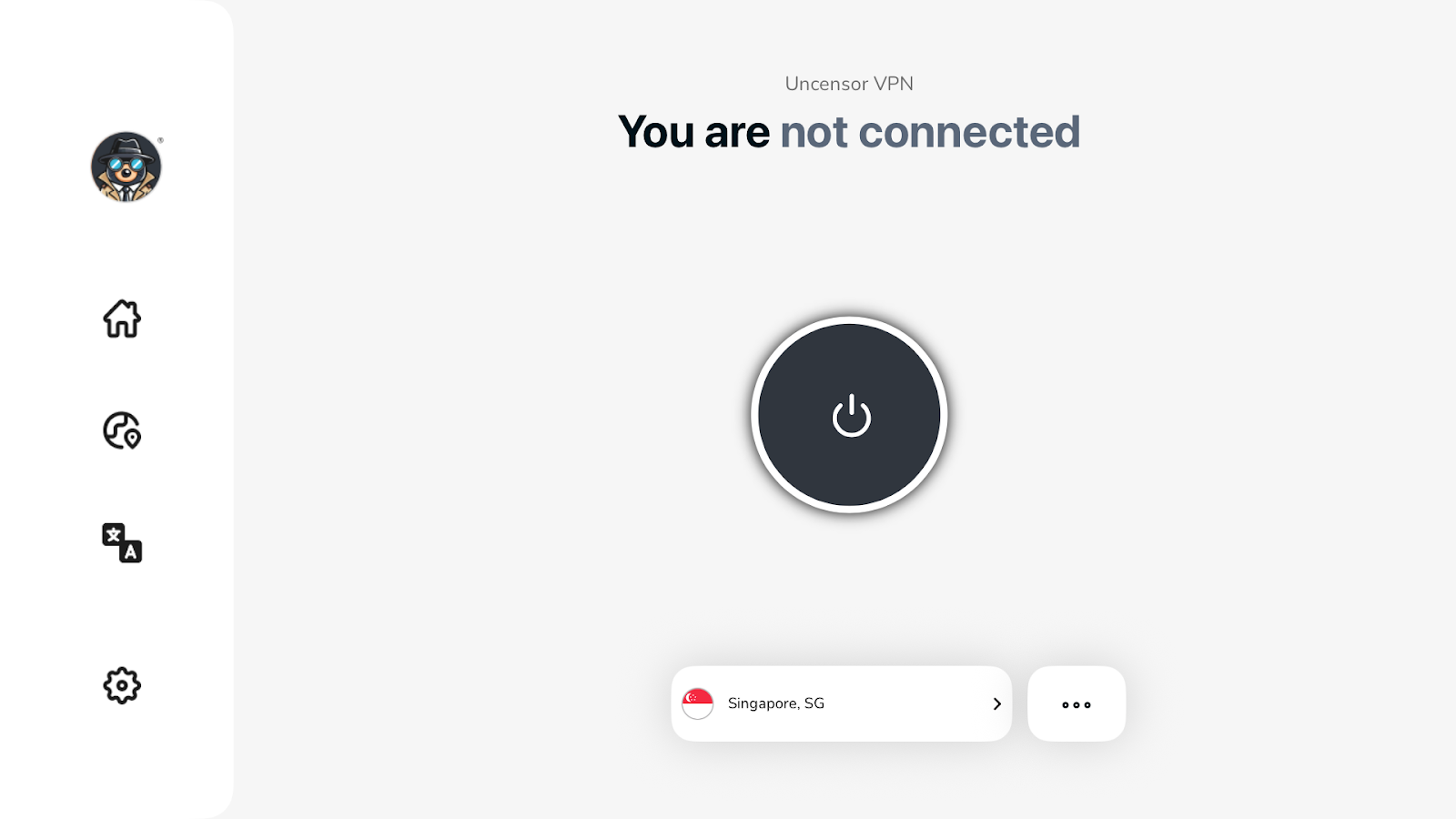
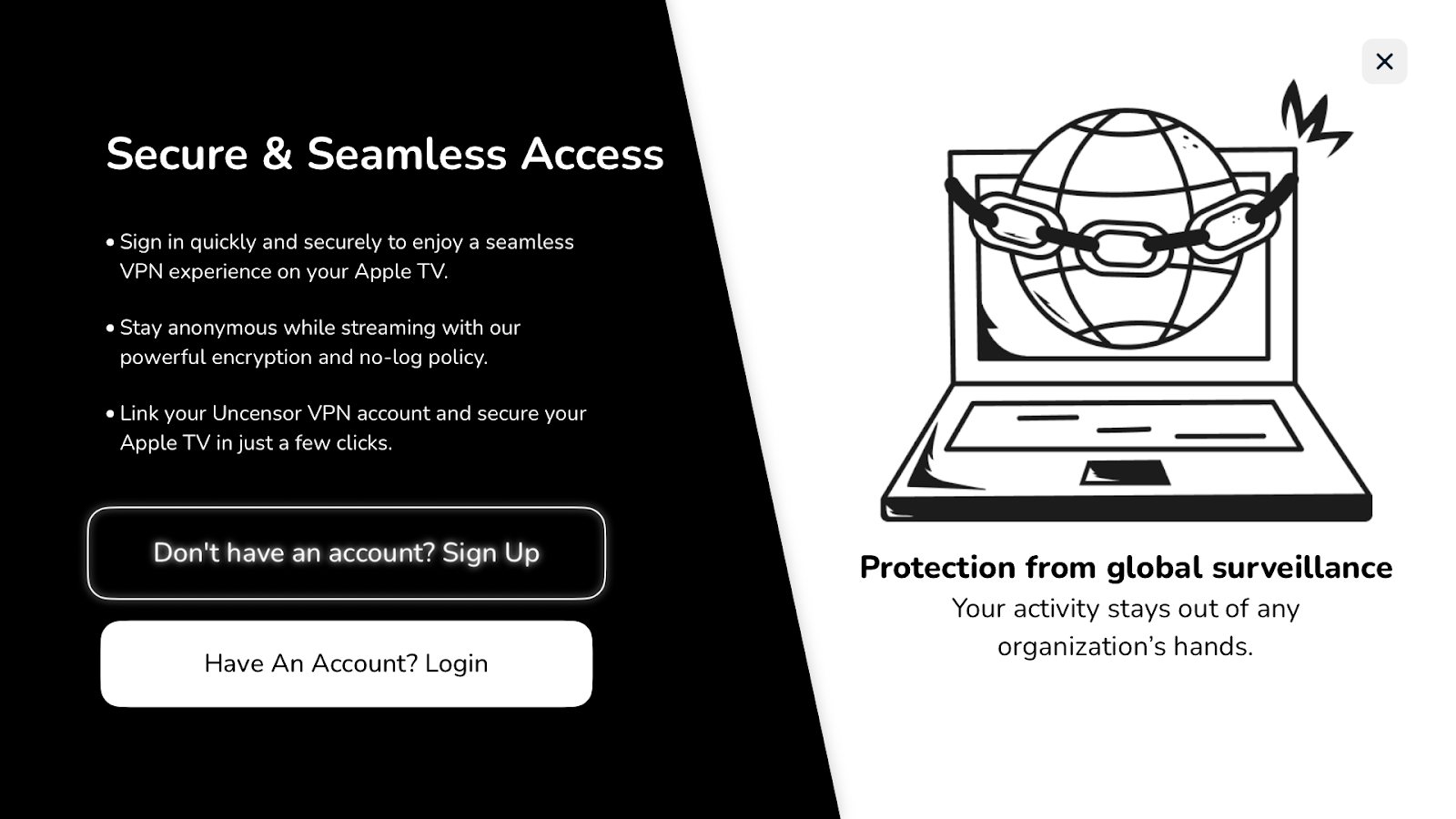
- If you already have an account, press Have an account? Login button.
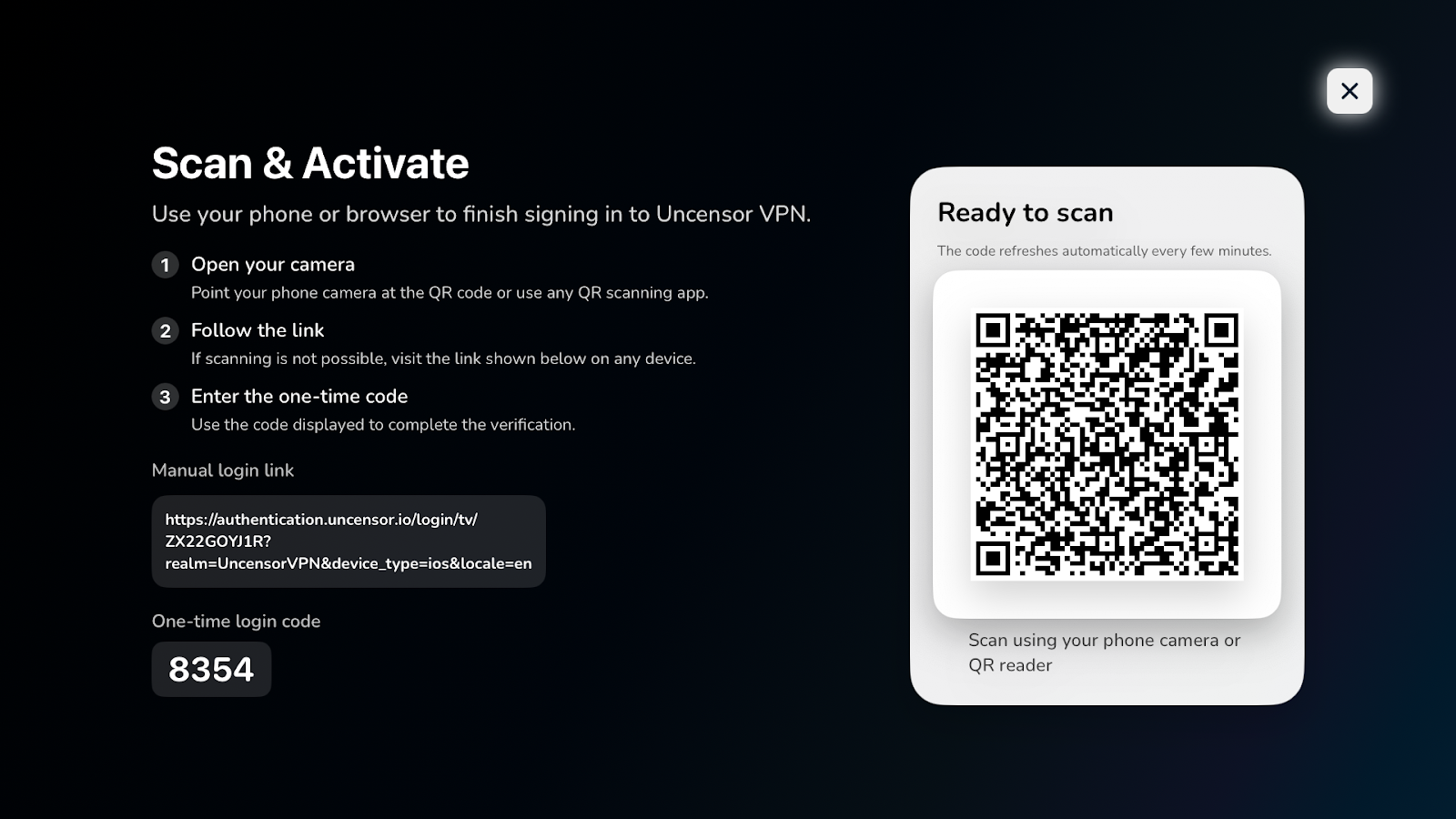
- During the setup process, you’ll be asked to scan a QR code using the camera on your mobile or tablet device. After scanning, you’ll be redirected to a webpage where you’ll need to enter the six-digit code displayed on your Apple TV screen. Once entered, simply click Submit to continue.
 Note: When you log in to the UncensorVPN app for the first time, you’ll be asked to grant permission to configure the VPN on your device. A pop-up will appear requesting your approval when you attempt to connect.
Check User details / Subscription details on Apple TV App
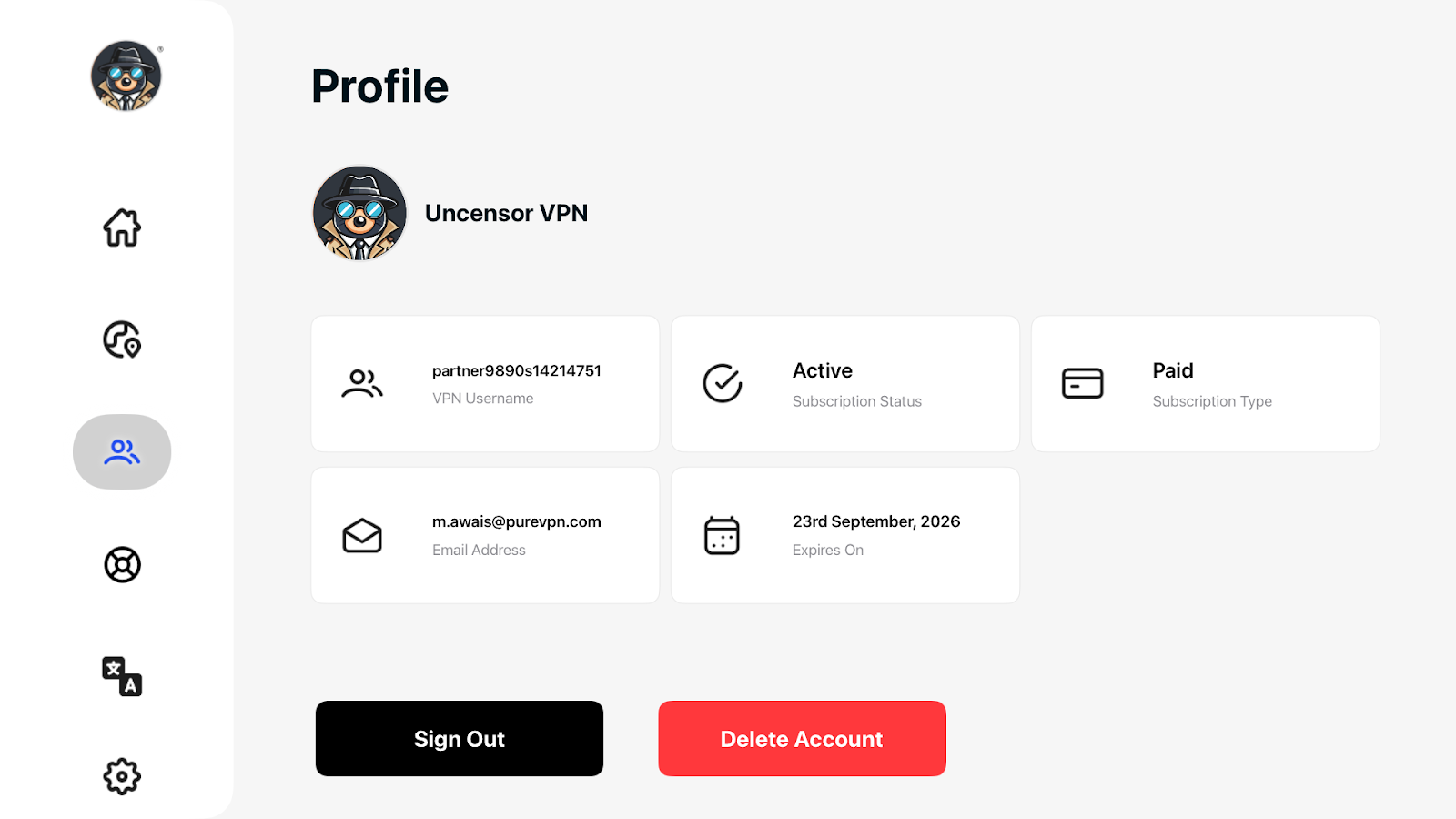
To access your user details /subscription details on the UncensorVPN application, kindly follow the provided instructions below:
- Press the Profile icon from the left panel.
- Check the details in our App.
Connect via recommended server/location on Apple TV App
Curious about the recommended server?
The recommended server automatically connects you to the best location suggested by our smart algorithm, which selects a server based on your geographical distance. Learn more about how UncensorVPN’s smart algorithm works.
How to get connected with the recommended location/server? Follow the instructions below 👇
- Press the Connect to Recommended button and the app will connect you to the fastest VPN server available.

- If your connection was successful, you will see the status as Connected. To disconnect, simply press the Connected button located at the center of the UncensorVPN app.
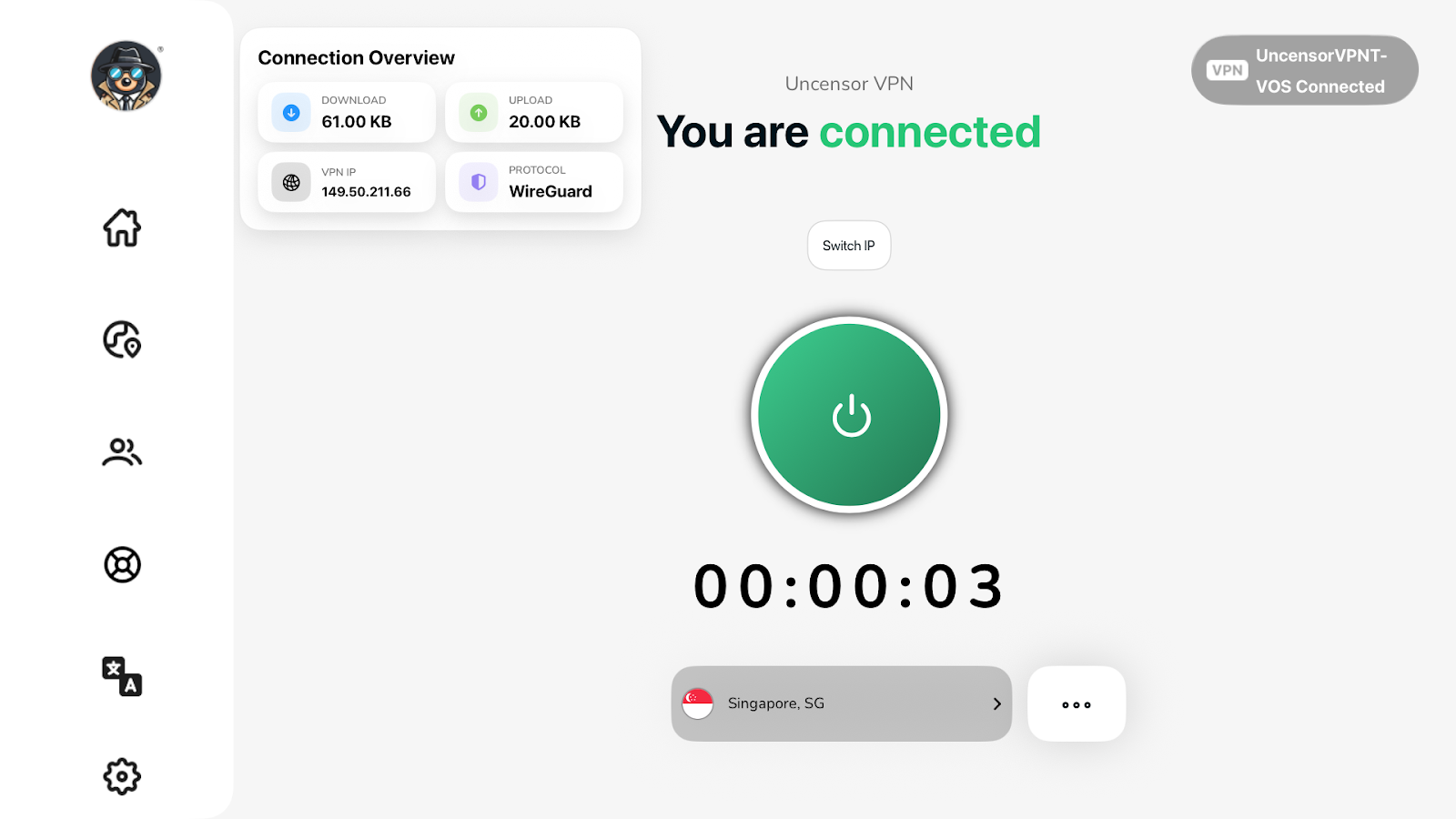
Connect with your preferred country on Apple TV App
UncensorVPN gives you plenty of choices — with over 6,500 VPN servers across 70+ countries and 88+ locations, you can easily connect to your preferred destination anytime.
- Press Locations 🌐
- Choose your desired location from the list of countries.
- You are now Connected to the UncensorVPN app with your preferred location.
Connect with your desired city on Apple TV App
This feature allows you to explore and connect to different cities within a selected country in the UncensorVPN app.
Not sure how to choose one? Just follow the steps below 👇
- Press Locations 🌐
- Press the country associated with the city you wish to connect to, and a list of cities will appear.
- List of available cities will be displayed next to each country. Choose your desired City to get connected.
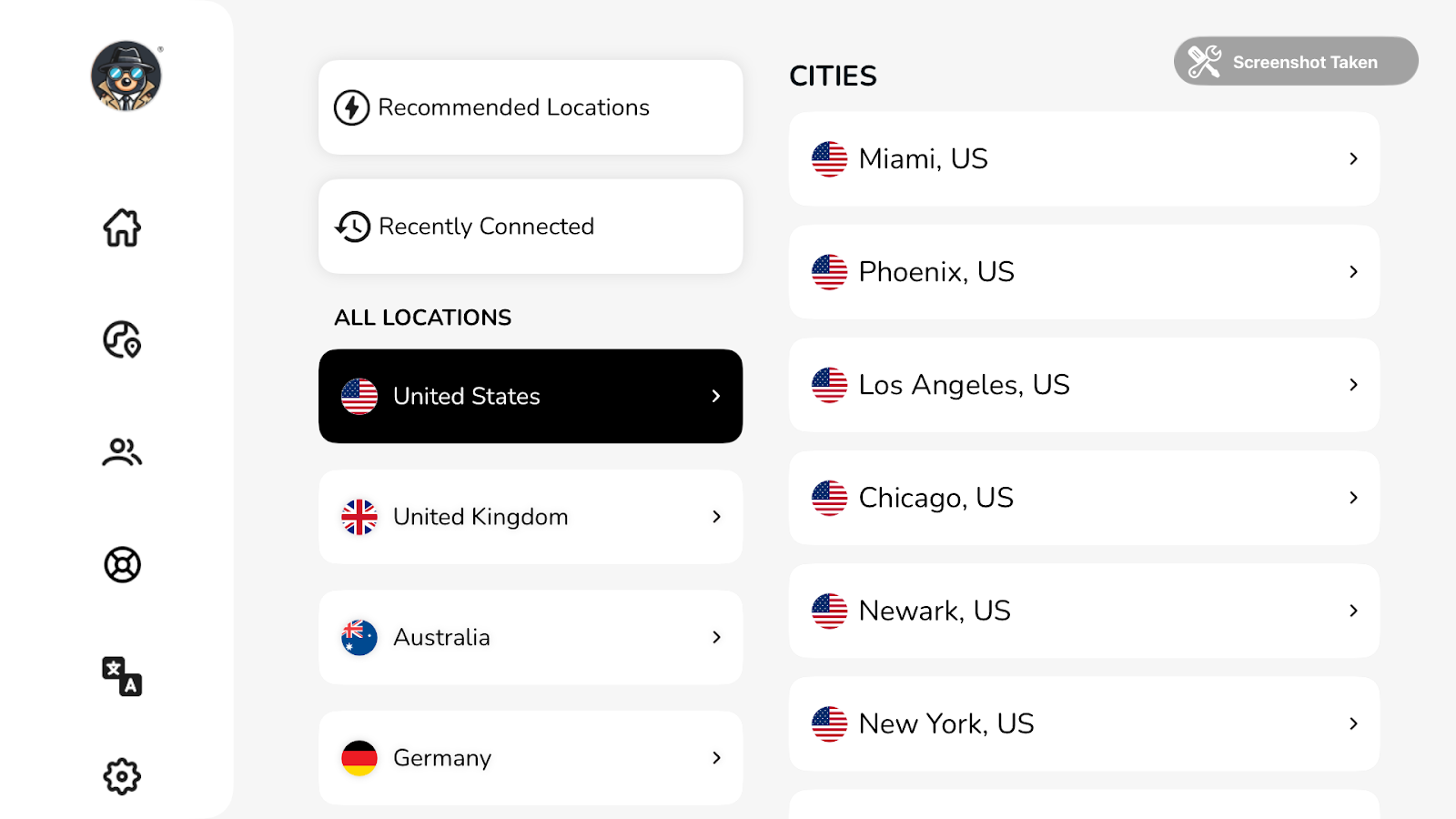
- You are now connected to your desired city.
Clear Preferences on Apple TV App
This option allows you to restore the UncensorVPN app to its default settings.
Want to learn how? Simply follow the steps below 👇
- Press the Setting icon from the left panel.
- In the settings tab, you will be able to see the Clear Preferences option.
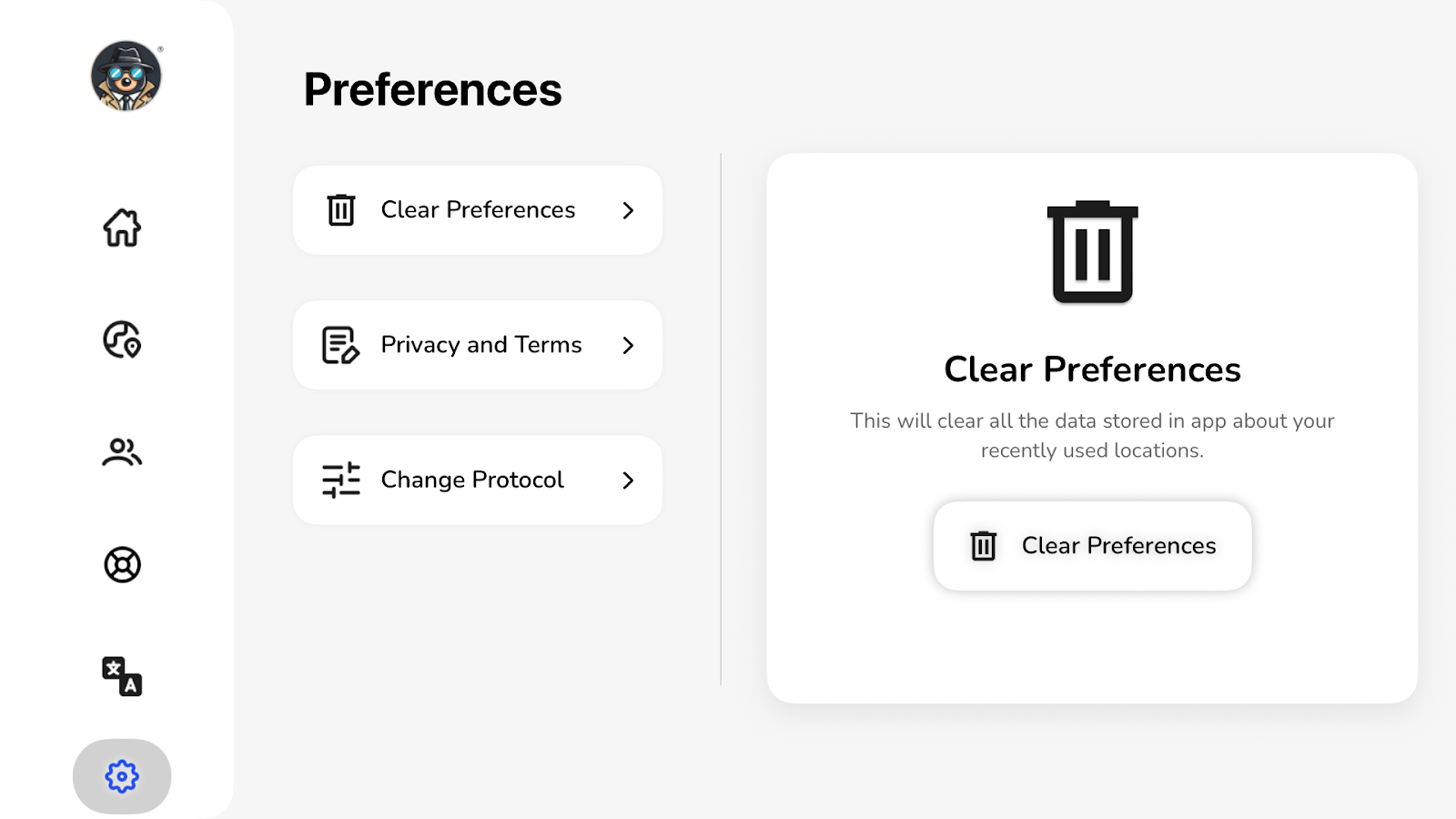
- Press Clear Preferences to reset the app settings to default. A pop-up will appear asking you to confirm. Press Yes to proceed.
- Your app preference has been cleared successfully.
Logout from Apple TV App
We recommend staying logged in to the UncensorVPN app for enhanced security while browsing.
However, if you prefer to log out, you can easily do so by following the steps below:
- Press the Profile icon from the left panel.
- Press the Sing Out from device button to sign out of the UncensorVPN application.
- Press Yes,log me out button, you will be successfully logged out from the UncensorVPN app.
How to Switch Protocol on Apple TV
Learn how to enhance your VPN connection on the UncensorVPN Apple TV by changing protocols. Follow our step-by-step guide to seamlessly switch between protocols and improve your online privacy and browsing experience.
Note: To manually select a VPN protocol, first disconnect from the UncensorVPN app. Then, turn off the “Automatic Protocol” option to view and choose from the available protocols.
Protocol Guide:
UDP: // UDP:
Ideal for streaming and downloading. Offers fast connections with moderate encryption.
TCP: // TCP:
More reliable but slightly slower, commonly used for web browsing.
IKEv2: // IKEv2:
One of the fastest and most stable protocols, perfect for streaming and downloading.
- Press the Setting icon.
- Press Change Protocol.
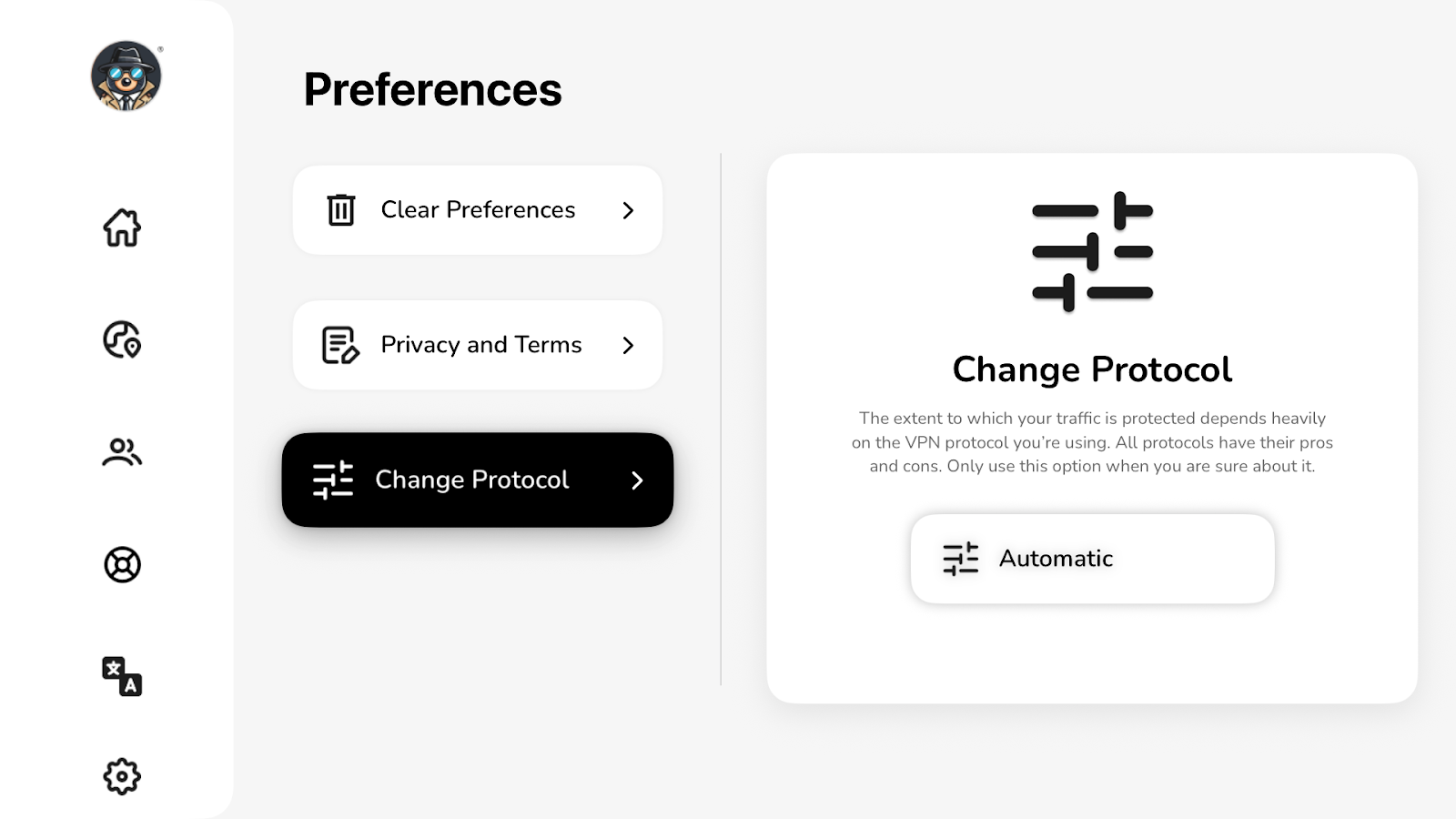
- Turn off Automatic Protocol Selection to change your protocol.
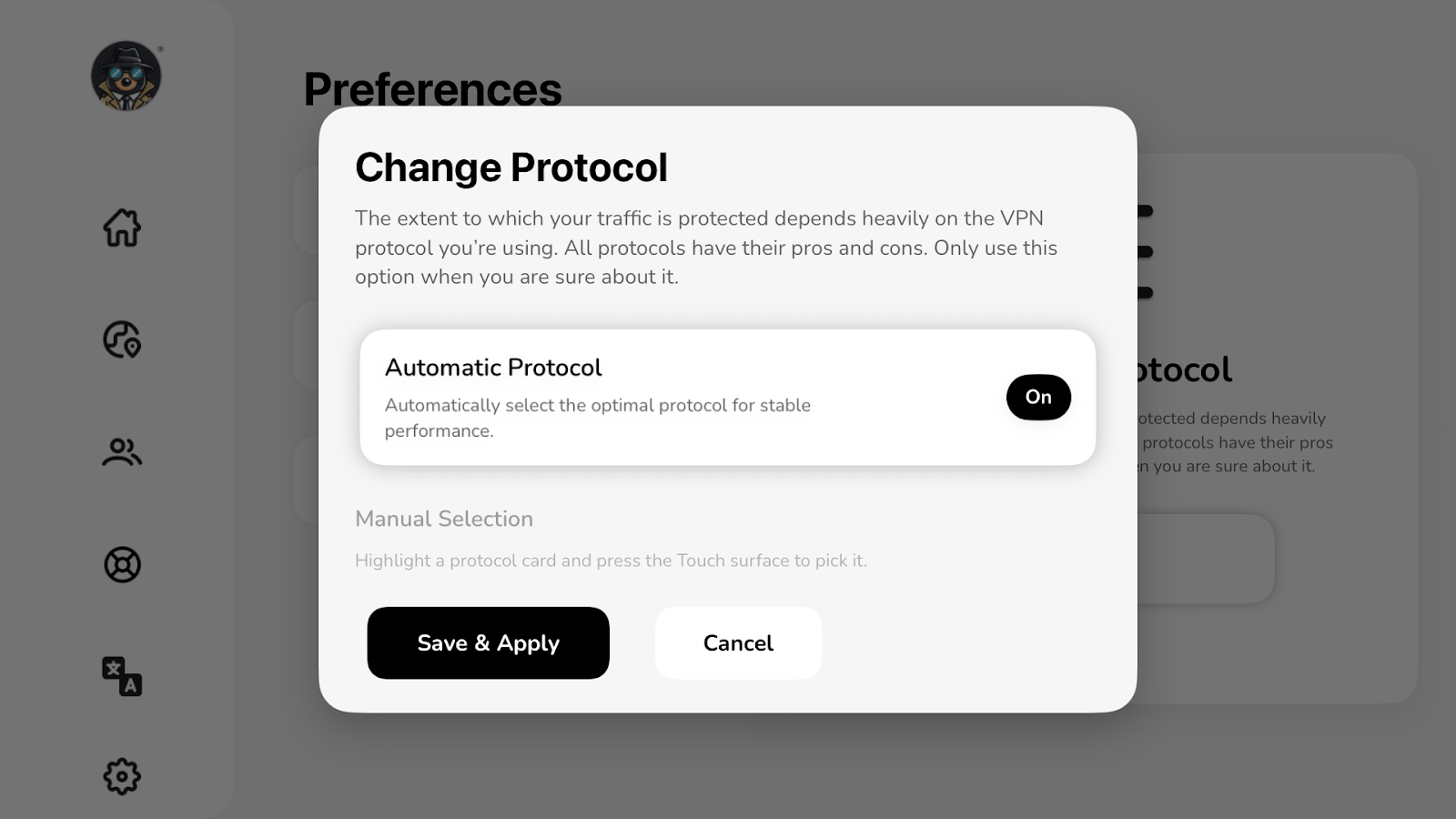
- Choose your desired protocol, then press Submit button.
- Connect to Fallback: This option will connect you to the next best available option if you are unable to connect with your preferred protocol.
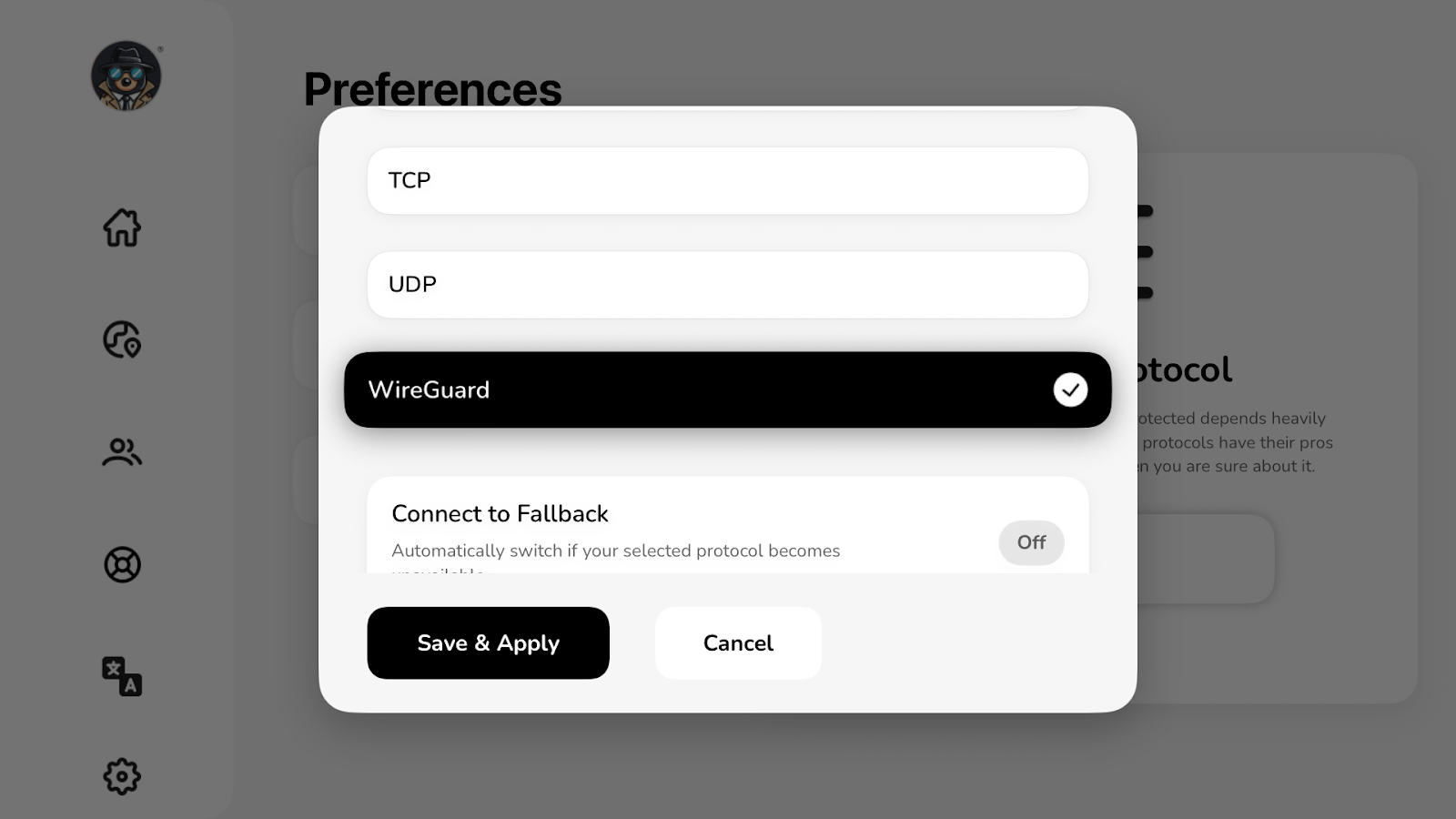
- Congratulations! You have successfully changed the protocol.